Storage location
Recording storage locations accurately ensures you can find material quickly, plan retrieval, and report what is held at each site.
Location information consists of three parts:
- Maintenance Site: the site or unit responsible for the inventory.
- Storage location: the physical address within that site, recorded in up to four hierarchical sections.
- Coordinates: optional latitude and longitude of the storage or planting location.
Maintenance site
The Maintenance Site identifies the unit responsible for an inventory item. Because users typically only see inventories for their associated sites, selecting the correct site controls access and management.
A single accession may have inventories at several sites. Use the Compare sites tool to review distribution.
Storage location fields
Storage locations use four sections to describe a hierarchy from the largest area to the smallest container. Use these levels consistently. See storage naming conventions for guidance on choosing labels.
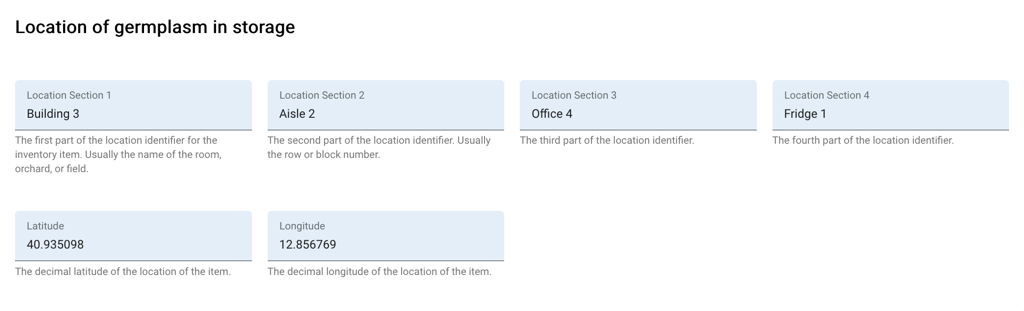
A common convention is:
| Field | Typical meaning | Example |
|---|---|---|
| Location Section 1 | Room, building, or field block | Building 3 |
| Location Section 2 | Row, aisle, or rack | Aisle 2 |
| Location Section 3 | Shelf, cabinet, or office | Office 4 |
| Location Section 4 | Box, drawer, or fridge | Fridge 1 |
Use permanent addresses, such as Row A-1, Rack C, Shelf 1, Box 5. Avoid encoding inventory numbers or accession names into location labels, as material moves over time and labels quickly become inaccurate.
Latitude and longitude
For field genebanks or precise positioning, enter the Latitude and Longitude in decimal degrees. A coordinate map picker is available on inventory forms: click the map to set the coordinates visually, or click My current location to capture the device's current position. The picker preserves the zoom level as you work.
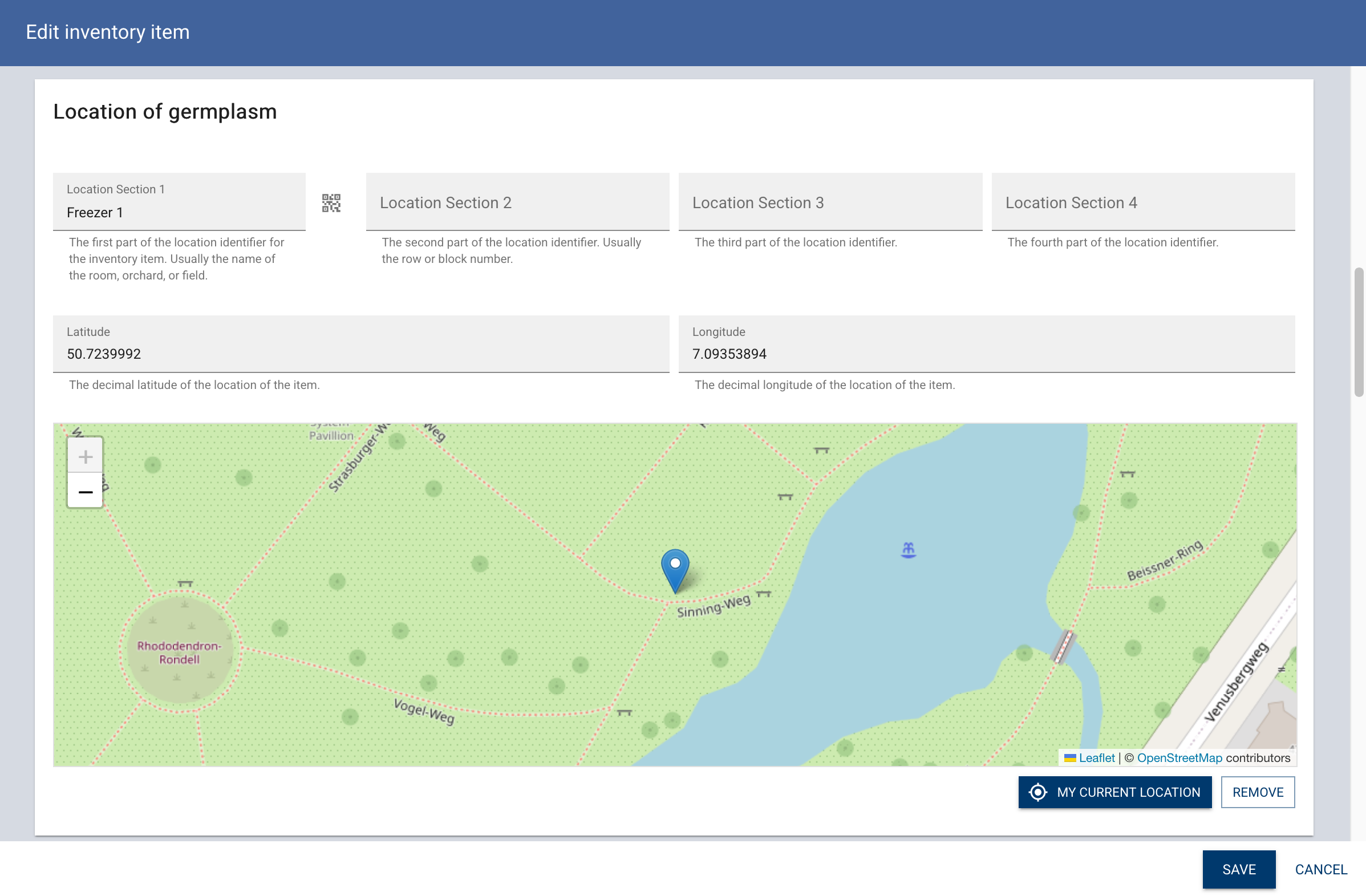
Coordinates indicate the current storage or planting location, not the original collection site. This is primarily used for field collections or marked planting spots.
Recording or updating a storage location
Update storage locations using these methods:
- Fill in the storage location fields when registering a new inventory item.
- Click Edit on the Inventory details page to change the site or location of an existing item.
- Use the Storage navigator to view and adjust locations for multiple items.
- Use the Assign Storage Location tool to move items by scanning barcodes.
- Scan a location barcode into the storage fields. See the location in storage documentation for details on barcode parsing.
- Use a handheld scanner to enter a location barcode directly into the Location Section fields on the inventory form.
Finding inventory by storage location
Filter by site and storage location using the inventory grid, Inventory summary, Storage navigator, and Compare sites pages.
Storage-location filters are single-option selectors. To apply a filter, select a value and press Enter; empty values are cleared automatically. You can select multiple storage locations as a combined address to find items that match the full location path.
For example, list all items in Rack 7 regardless of the shelf, or search Building A and Building B simultaneously.
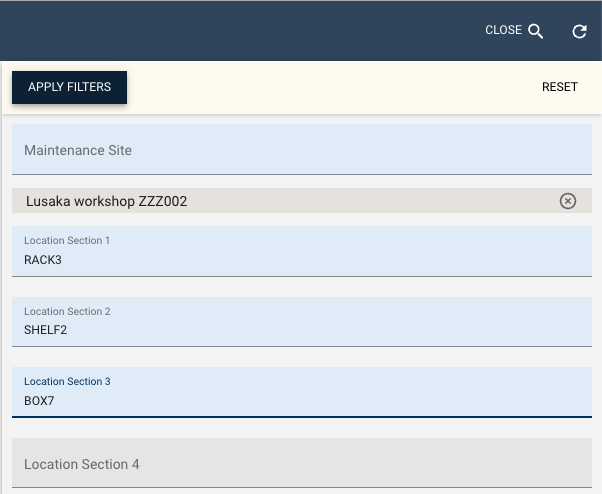
Use the Storage navigator to work through a storage area systematically: select the site and location, review existing items, and add or move items as needed.
Keeping location data accurate
Keep location data current by following these best practices:
- Record the location immediately upon storage.
- Update the location whenever material is moved.
- Use a consistent naming convention for reliable filters and reports.
- Avoid variations like
Rack 7,rack 7, andR7for the same rack. - Use the Storage navigator with empty location fields to find items missing data.