Adding new inventory items
When creating new inventory records, the following requirements must be met:
- Each inventory item must link to an accession that references a species accepted in the taxonomy table. If only the genus is known, use Genus spp. provisionally and specify the exact species later.
- Each inventory number must be unique and consist of four fields: Inventory Prefix, Number, Suffix, and Type. The Inventory Type reflects the form of the germplasm (for example,
SDfor seed,PLfor plant, andIVfor in vitro material). - Every inventory item must reference one of the inventory maintenance policies. Select a policy before saving a new item.
- Select a maintenance site from the list. These sites are typically managed by the administrator. Start typing in the field to see available sites.
- Specify the availability status from the available options.
Acquisition
Most system operations automatically generate inventory records. Use the Acquisition tool to bulk-add new temporary accessions and corresponding inventory items, such as those obtained during a single collection trip.
For the full workflow, see acquisition.
Manually adding new inventory items
To add a new inventory item, select Inventory from the left menu. Click the Plus (+) button at the bottom right of the inventory grid to open the New inventory item form.
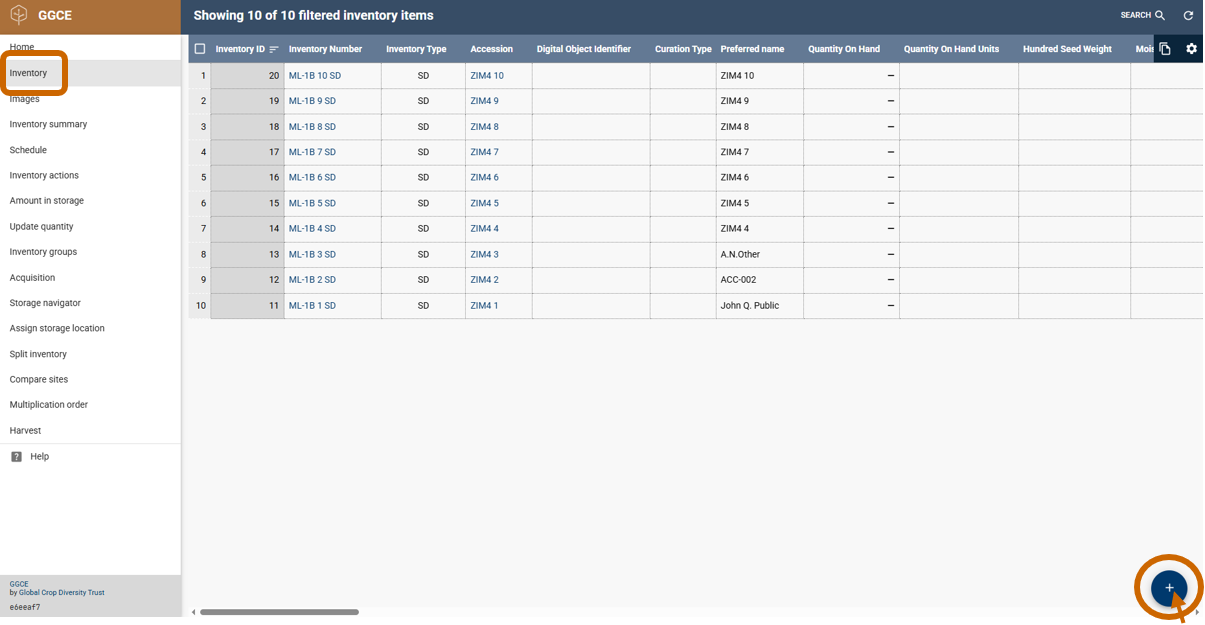
The inventory form is divided into several sections:
- Inventory Item
- Location of germplasm in storage
- Current quantity of germplasm
- Withdrawal and replenishment
- Other information
- Note
The following image shows details for an existing inventory item.

Most required fields are in the Inventory item section, except for Availability Status, which is in the Current quantity of germplasm section. The system will not save the record if any required fields are empty. If the save fails, check for prompts in the form sections.
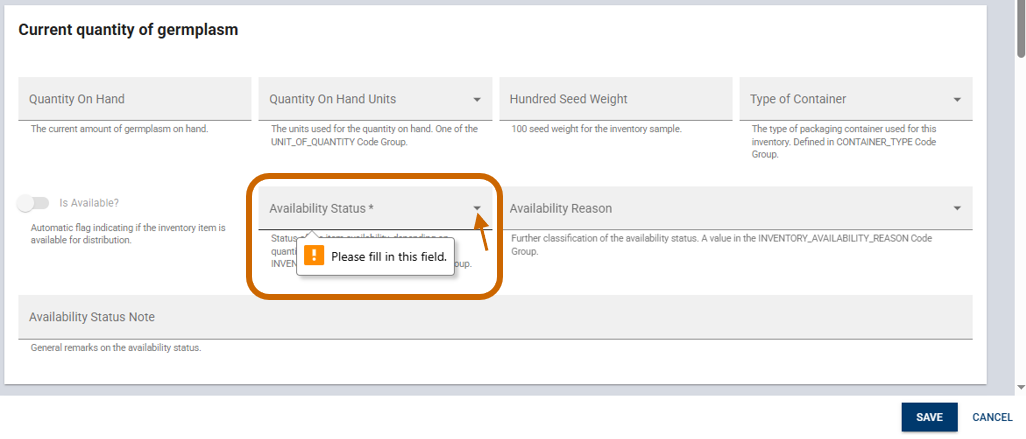
Field descriptions are displayed below each field.
Nine fields are automatically populated based on the selected Inventory Maintenance Policy.
Inventory form
Inventory item section
The following fields in the Inventory item section are mandatory:
- Accession
- Maintenance Policy
- Unique combination of Inventory Prefix, Number, Suffix, and Type
- Maintenance Site
The Availability Status in the Current quantity of germplasm section is also mandatory.
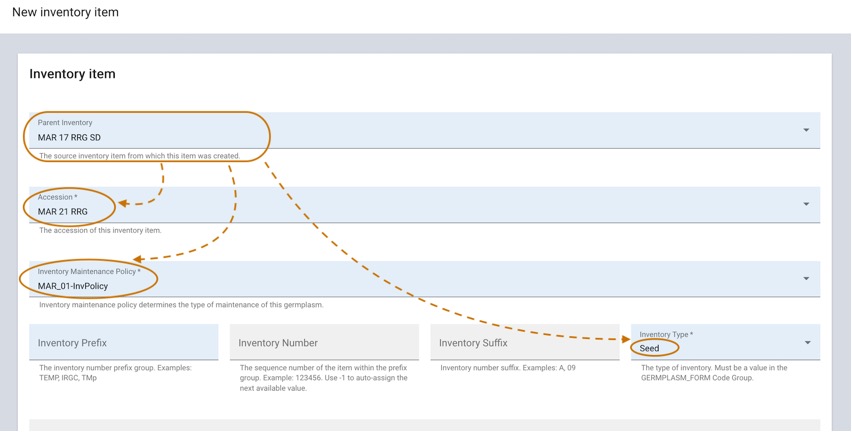
Parent inventory
Select the Parent Inventory field to auto-fill the Accession, Inventory Maintenance Policy, and Inventory Type fields.
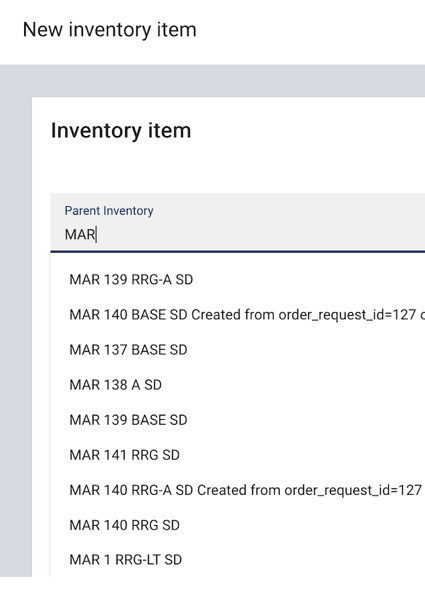
The Parent Inventory represents the germplasm used to create the current item. While optional, it should be provided when creating lots through regeneration. As you type, a list of existing inventory numbers appears for selection.
Maintenance site
Maintenance Site is mandatory. Start typing in the field to see a list of available sites.
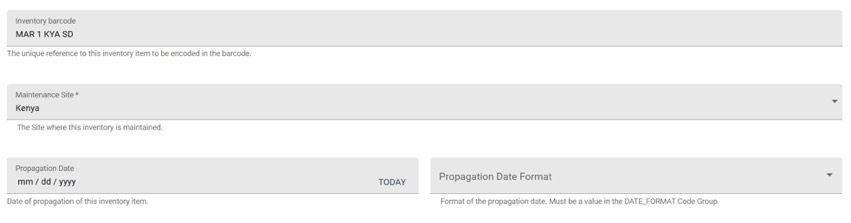
The administrator maintains the site list. Contact them to add a new site. Selecting a parent inventory automatically populates the maintenance site, but you can change it if needed.
The Propagation Date indicates when the germplasm was multiplied. If the exact date is unknown, use the Propagation Date Format to specify an approximate date.
Location of germplasm in storage section
Accurately recording the location of germplasm is critical. To accommodate different naming systems, the system uses generic fields: Location Section 1, 2, 3, and 4. For living plants, you can also record Latitude and Longitude. Use the coordinate map picker to select a point on the map or capture the current location.
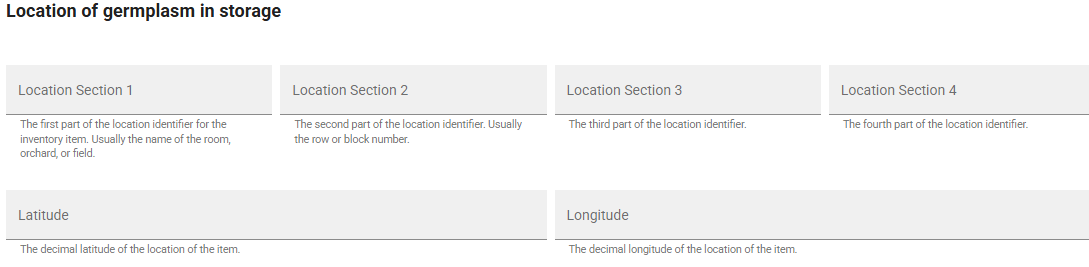
See storage naming conventions.
Current quantity of germplasm section
This section records the amount of germplasm currently on hand.
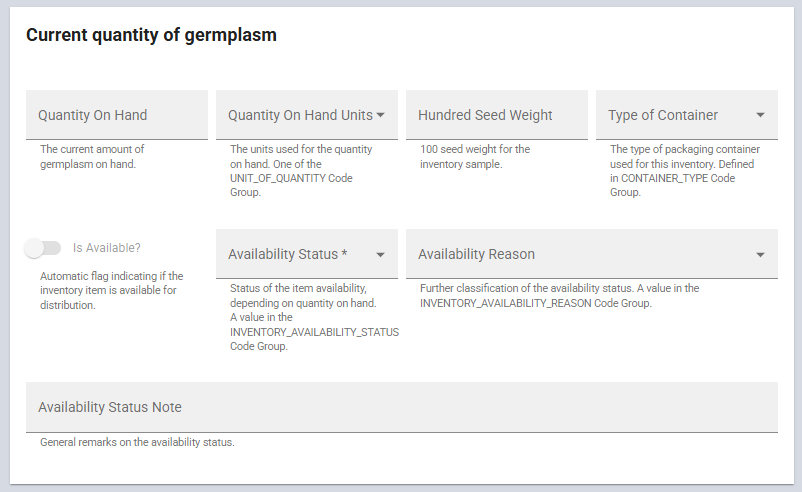
While Quantity On Hand is optional, it is recommended. Use the dropdown lists for Quantity On Hand Units and Type of Container. Hundred Seed Weight records the cumulative weight of 100 seeds.
The inventory grid uses visual cues based on the Quantity On Hand.
Availability Status is mandatory and must be selected from the dropdown before saving. Set new inventories to NOT-SET.
NOT-SET, LOW, and AVAIL are special statuses that the system updates automatically as quantity changes.
If the status is NOT-SET or LOW and quantity exceeds the Distribution Critical Amount, it changes to AVAIL. If it drops below the threshold, it changes to LOW. The system does not auto-update other status options.
The Is Available? switch indicates whether Quantity On Hand exceeds the Distribution Critical Amount (or 0).
Updating quantities
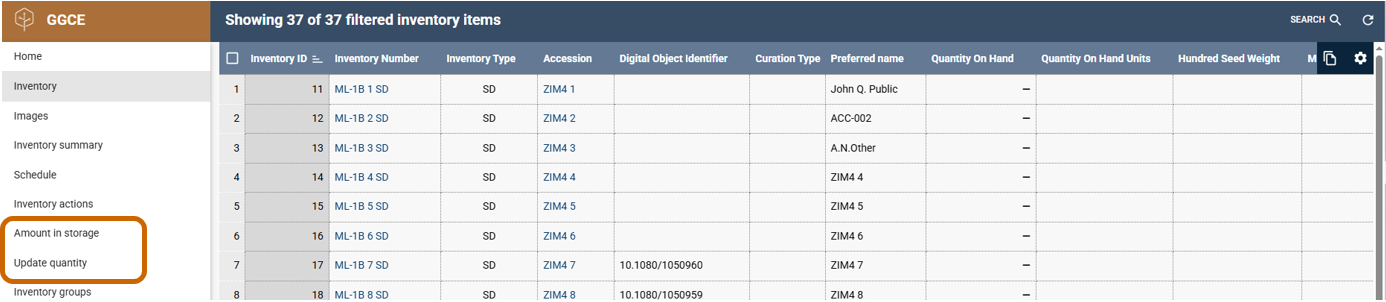
To review or modify inventory quantities, use Amount in storage or Update quantity in the Inventory menu.
Amount in storage
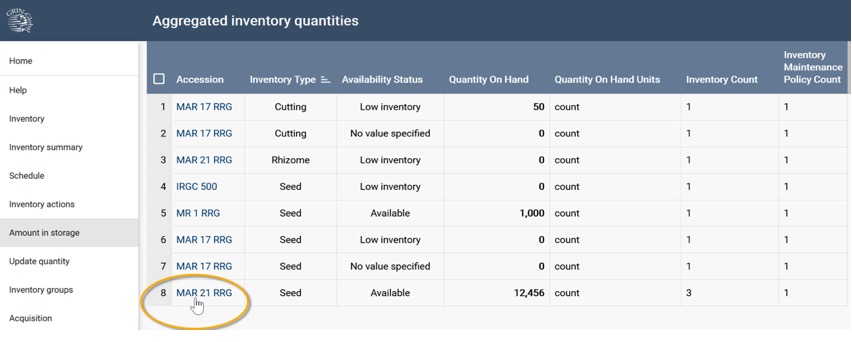
Amount in storage provides details on conserved materials, including type, status, quantity, and inventory count. Filter the list using specific search criteria.
Results show aggregate amounts per accession, providing a summary of all conserved material.
Withdrawal and replenishment section
The Withdrawal and replenishment section documents how quantities are distributed and monitored, including the quantity and form of distribution. Use this section to specify critical quantities for monitoring. Availability Start Date and Availability End Date are notes and do not affect actual availability.
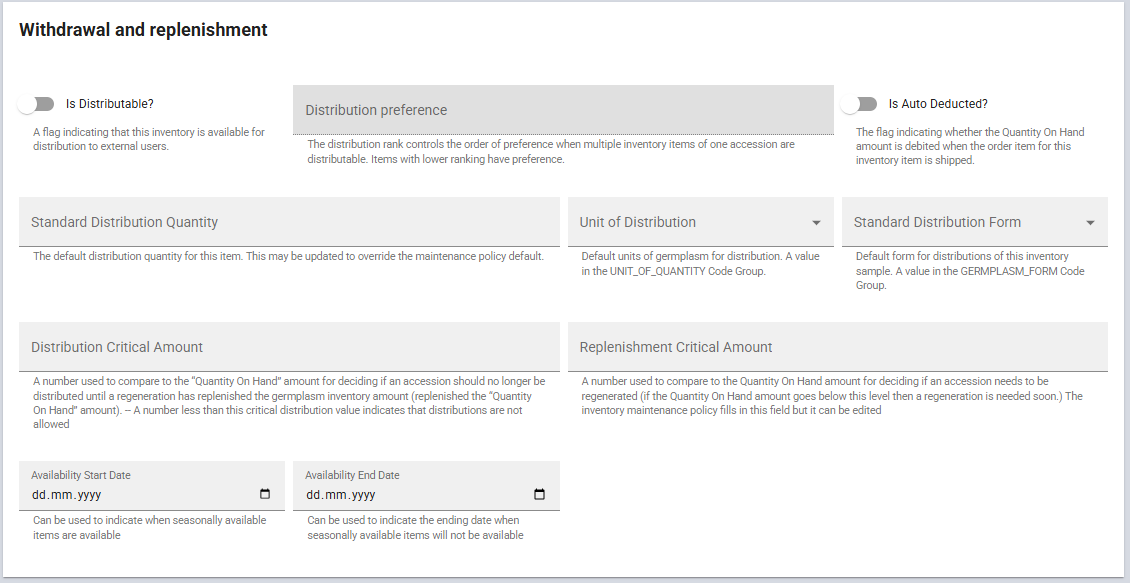
The following fields are governed by the selected Inventory Maintenance Policy and are automatically populated when the item is saved. For more details, see the inventory maintenance policy documentation.
- Is Distributable?
- Is Auto Deducted?
- Standard Distribution Quantity
- Unit of Distribution
- Standard Distribution Form
- Distribution Critical Amount
- Replenishment Critical Amount
- Availability Start/End Date
- Availability Status Note
Use critical amount fields to ensure sufficient germplasm is in storage. Distribution Critical Amount is the minimum quantity required for external distribution. Replenishment Critical Amount is the threshold for initiating multiplication. Typically, the distribution threshold is higher than the replenishment threshold to avoid compromising future multiplication. These thresholds are based on species viability and request frequency.
The Availability Start Date and Availability End Date are reference notes for the distribution eligibility period.
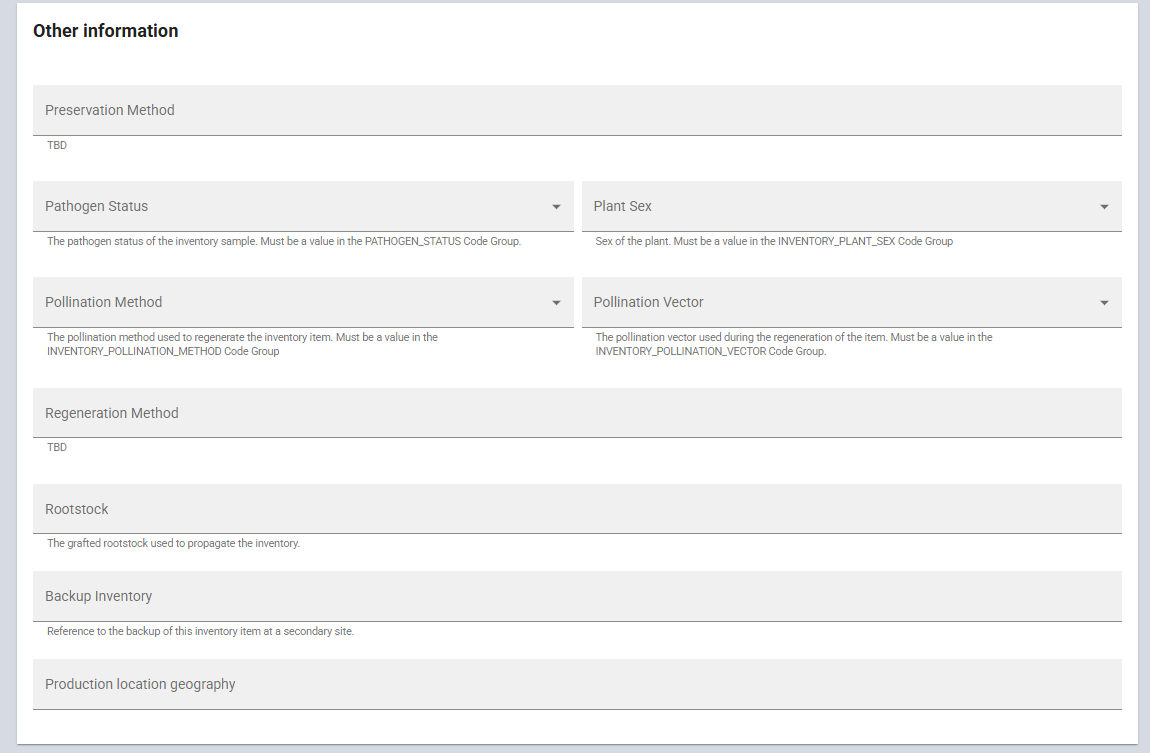
Other information section
All fields in this section are optional.
Preservation Method and Regeneration Method reference the system's methods table. Pollination Method, Pathogen Status, Plant Sex, Pollination Vector, and Production location geography use standardized codes. Rootstock and Backup Inventory accept free text.
Note section
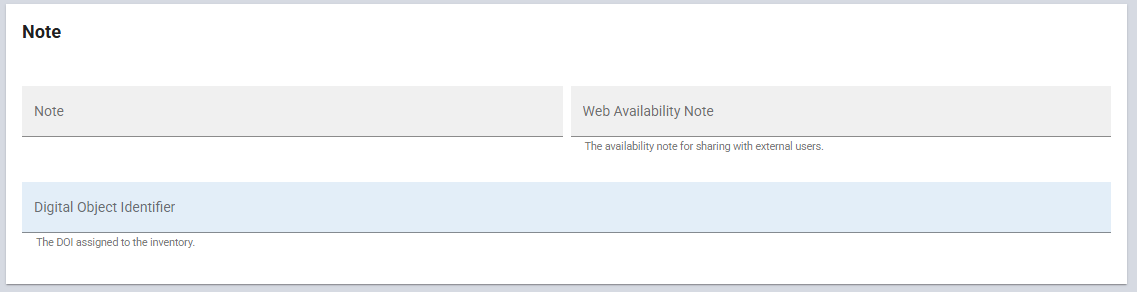
The note fields are text. The Note field is for internal use; the Web Availability Note is for external users. The Digital Object Identifier (DOI) is a persistent link (for example, 10.xxxxx/xxxx) used to uniquely identify and access the inventory.
Inventory barcode
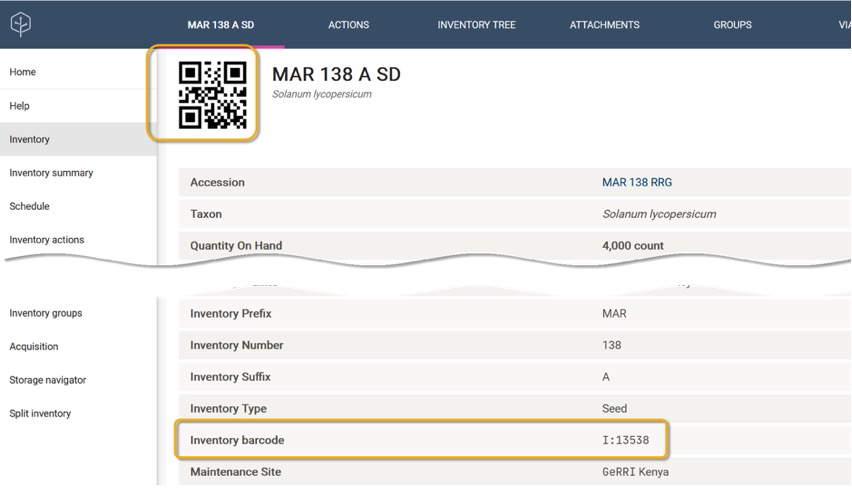
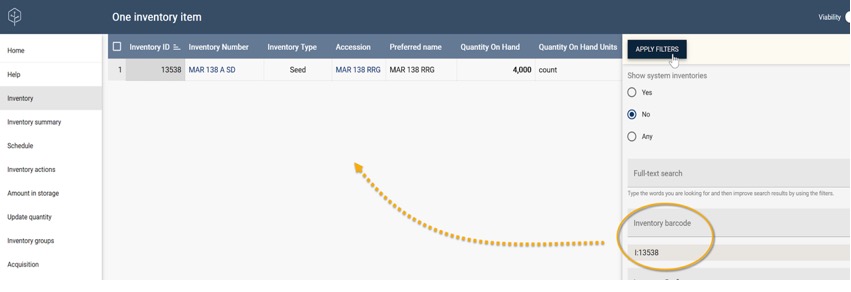
The Inventory Barcode is a unique identifier printed as a QR, Datamatrix, or linear barcode. Affix these labels to packaging to streamline system interactions using barcode readers.
The system automatically generates a barcode upon the first save. If you use an existing barcoding system, scan the current barcode into this field.
The barcode's text equivalent (for example, I:13538) is shown in Inventory details. Use this identifier if a scanner is unavailable.
Editing or deleting existing inventory items
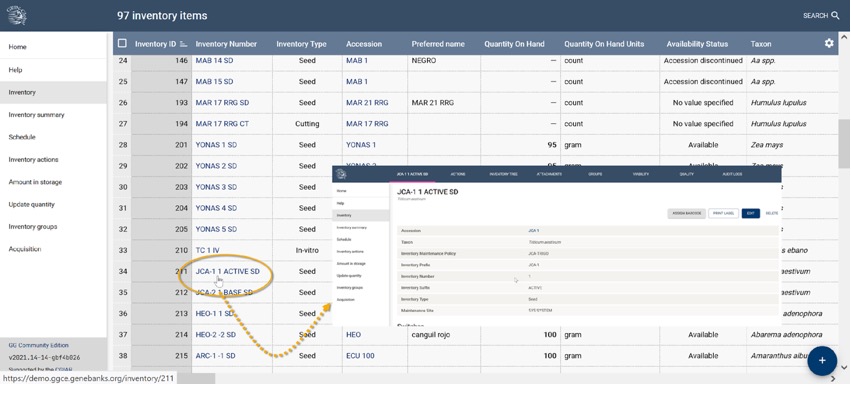
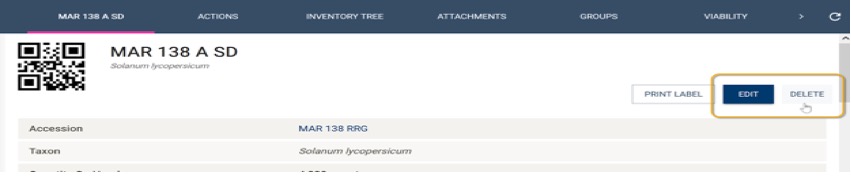
Click an Inventory Number in the inventory list to open its form. You can then update the details or delete the item.