Packaging request items
The Packaging workflow helps genebank technicians prepare order request items for shipment. It is an action-driven process: each item to be shipped has an associated Pack action. As you scan inventory barcodes, the system loads the open packing action, lets you record what is actually being shipped, and then marks the action as completed.
Opening the packaging page
Navigate to Distribution > Pack request items. You can also start packaging for a specific request directly from the request details page.
To load a request, scan its barcode (OR:<id> or the raw request ID) in the barcode field, or type the request ID manually. The system loads the request header and shows the packaging workspace.
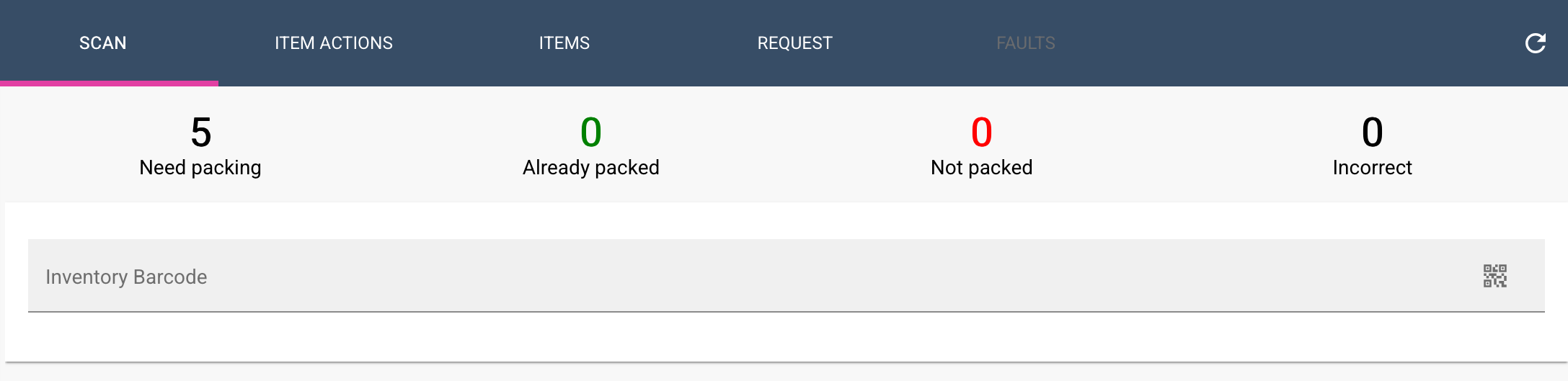
Scanning items
Once a request is loaded, scan the barcode of an inventory item. The system provides audio feedback for each scan:
- Item found: a success beep sounds and the packaging forms appear for that item.
- Item already packed: an error beep sounds and the barcode is added to the Faults list.
- Item not found: an error beep sounds and the unrecognized barcode is added to the Faults list.
When a valid item is scanned, the system finds the open Pack action for that inventory item and starts it. If the scan returns multiple or no open actions, the item is rejected and recorded as a fault.
Packaging forms
When an item is selected, three form cards are displayed. You can fill them in before clicking Packed! or Not packed!.
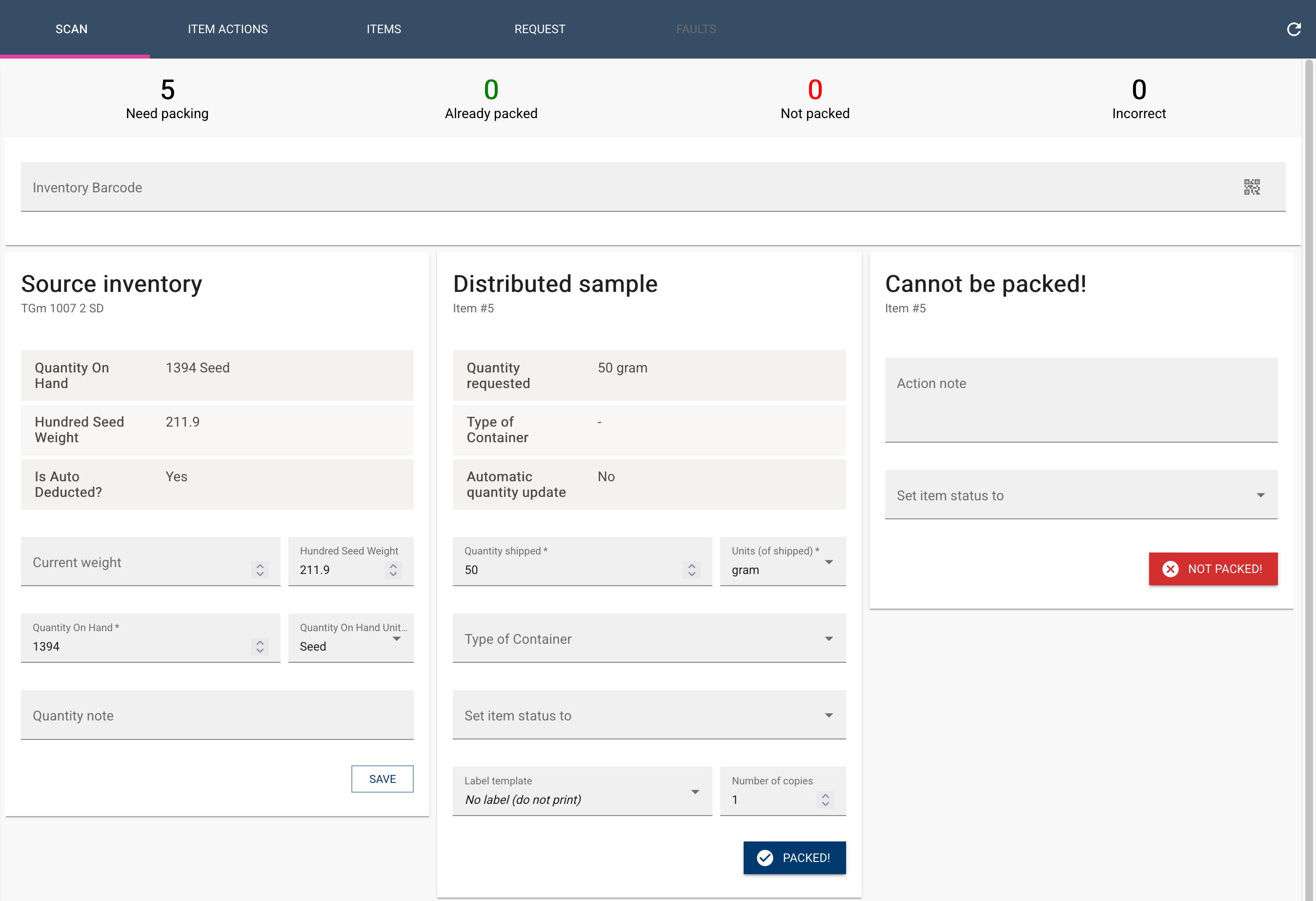
Source inventory
Use this card to update the source inventory record before the item is shipped:
- Quantity on hand: the amount currently available in the source inventory (required).
- Unit: the unit of measurement for the quantity on hand (required).
- Hundred seed weight: the weight of 100 seeds, used to convert between seed count and weight.
- Weight: a weight reading from a connected electronic balance.
- Note: any observation about the source inventory.
If the unit is seeds (sd) and both weight and hundred seed weight are provided, the seed quantity is calculated automatically. For gram units (g or gm), the balance button fills the quantity on hand directly. When you confirm this card, the updated quantity is saved to the source inventory record.
Distributed sample
Use this card to record the sample that is actually being shipped:
- Quantity shipped: the amount being sent (required).
- Unit: the unit for the shipped quantity (required).
- Container type: the type of container used for the shipment.
- Deduct source: a switch to manually deduct the shipped amount from the source inventory. This is only visible when the source inventory is not configured for auto-deduct, and it defaults to on when shown.
- Next item status: the status to assign to the request item after packing, selected from the list of request item statuses.
- Label template: a ZPL template from app settings or a PDF template from the repository.
- Number of copies: how many labels to print.
Defaults are taken from the request item (for example, the requested quantity and unit). Your previous selections for unit, container type, deduct-source setting, label template, and number of copies are preserved between scans to speed up repeated packing.
The balance button converts a weight reading to seeds using the Hundred seed weight when the shipped unit is sd; otherwise it takes the reading as-is in grams or count units.
Cannot be packed
If an item cannot be packed, use this card to record why:
- Note: the reason the item cannot be packed.
- Item status: an optional status to assign to the item (for example,
HOLDorCANCEL).
Completing the action
After filling the forms, choose one of the following actions:
- Packed!: updates the request item with the shipped quantity, container, and next status, deducts the shipped quantity from the source inventory if the Deduct source switch is enabled, prints labels if a template and number of copies are selected, and marks the Pack action as completed.
- Not packed!: after confirmation, marks the Pack action as not done and optionally updates the item status and note.
When the action is completed, the current item is cleared, the action counts at the top of the page refresh, and focus returns to the barcode field so you can scan the next item.
Tracking progress
The top of the page shows four count boxes derived from the action schedule overview for Pack actions:
- Need packing: the count of open Pack actions that are pending, in progress, or overdue. Clicking it filters the Actions tab to pending, in-progress, and scheduled states.
- Already packed: items whose Pack action is completed.
- Not packed: items whose Pack action is marked as not done or canceled.
- Faults: barcodes that caused errors during scanning.
The page also contains five tabs:
- Scan: the main barcode scanning and packaging workspace.
- Actions: the list of Pack actions and their current states. You can filter by state, dates, assignee, and nested item fields.
- Items: all items on the request, with their own filters.
- Request: general details about the order request.
- Faults: barcodes that caused errors during scanning, with the reason they were rejected.
Inventory deduction and labels
Inventory deduction
Shipped quantities can be deducted from the source inventory automatically or manually:
- Auto-deduction happens automatically when the request item status is set to
SHIPPED. It is performed only when the source inventory has the auto-deduct flag enabled, the item's distribution form matches the inventory's form type, and the shipped unit is compatible with the inventory unit. Seed/count and gram units are compatible only when a hundred seed weight is recorded. - Manual deduction happens when you enable the Deduct source switch on the Distributed sample card and click Packed!. The system converts the shipped quantity and updates the source inventory quantity.
If a shipped quantity is converted between seeds and grams, the conversion uses the Hundred seed weight:
- Seeds to grams:
quantity × hundred seed weight / 100 - Grams to seeds:
round(quantity × 100 / hundred seed weight)
Labels
The packaging page can generate two kinds of labels:
- ZPL labels: templates stored in App Settings with category
LABELand nameREQUESTITEM. Templates are distinguished by their sort order or original filename. The generated ZPL is sent via the GGCE Print app protocol or copied to the clipboard, depending on your printer configuration. - PDF labels: templates from the PDF label repository. The generated PDF opens in a new browser tab.
Use the Label template and Number of copies fields on the Distributed sample card to control label output.
Sound alerts and electronic balances
The packaging page uses sound alerts to confirm successful scans and to warn when a barcode is rejected. Focus stays in the barcode field so you can keep scanning without using the mouse.
A Bluetooth electronic balance can be connected from the balance button next to weight fields. Once paired, the balance reading is transferred directly into the active weight field. The same balance integration is available in the inventory adjust and split pages.