Using filters
Genebanks usually contain many records of a given type, such as accessions or inventory items. These lists can become lengthy, so GGCE provides a filtering feature that helps you to temporarily narrow down the results to display only records that meet your chosen criteria.
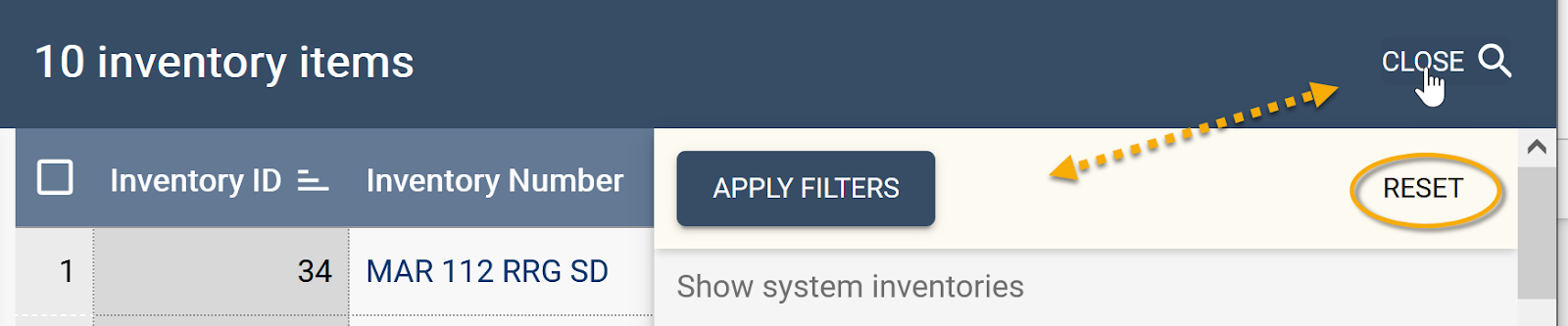
On many screens, a Search button appears in the top-right corner. Clicking this Search button opens a filter form that contains options relevant to the list you are viewing. You can then set your filtering criteria and apply them to display a smaller, more focused subset of records from the original list.

Text search
Some filters are designed to be broad in scope. In the following example, when the Inventory items list is displayed, using the Full-text search option checks multiple fields at once for potential matches.

In the next example, two different Inventory prefixes have been entered using the Starts with option.

"Starts with" means just that – this option finds records where the prefix begins with the text you type, even if the prefix may contain additional text. The search is not affected by the text's case. Entering two different prefixes will display all items that begin with either one
Filtering a range of values
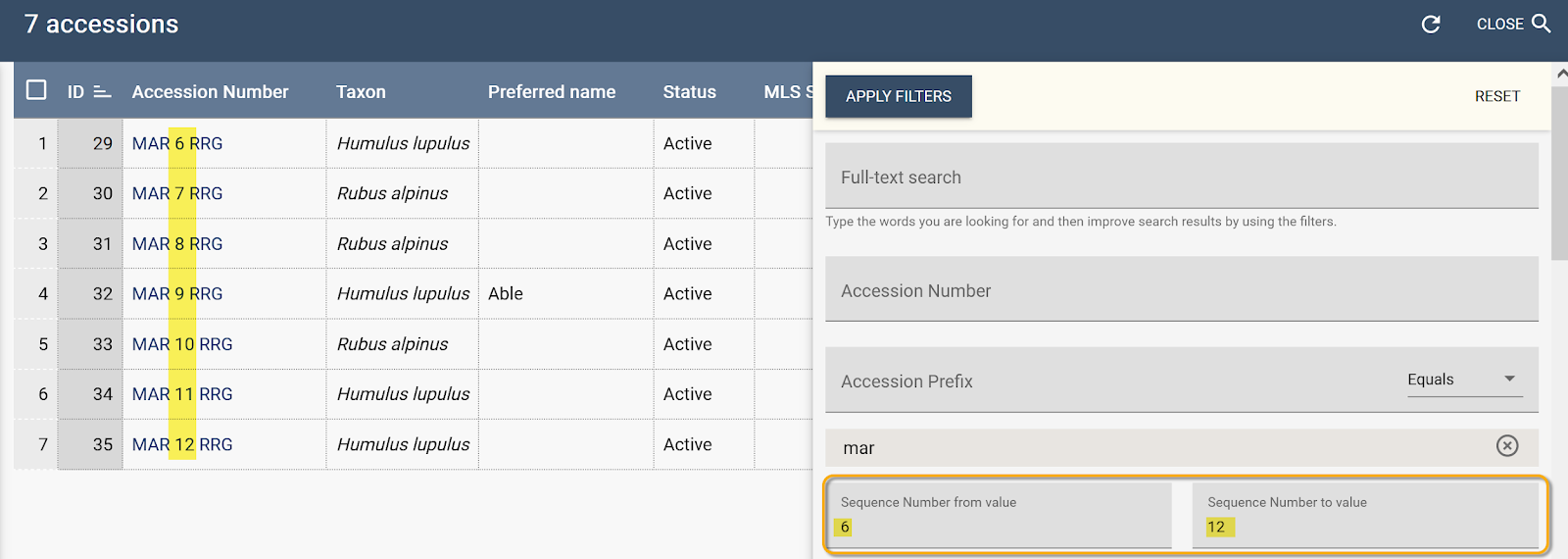
The Search feature can also be used to define a range of values for an accession or an inventory number component. For instance, you can specify a sequence of accession numbers – this is useful when you want to review a block of related records rather than searching for a single entry.
Searching by dates
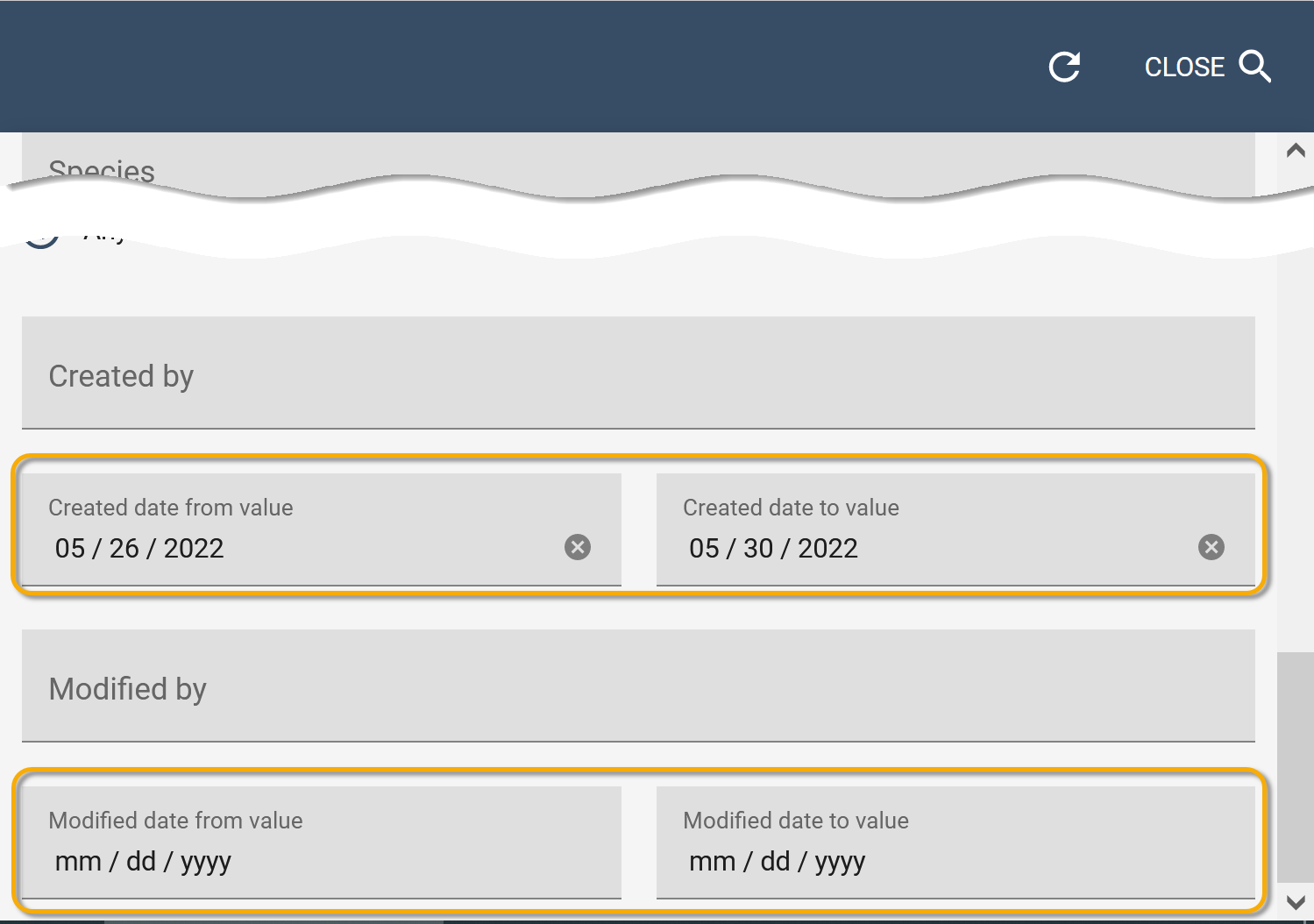
Every record in GGCE includes Created and Modified date fields. To search by date, you can enter a "From" (start) and "To" (end) date. If either date field is left blank, the search becomes open-ended in the respective direction. For example, omitting the start date shows all records up to the end date, and omitting the end date includes all records from the start date onward.
Applying a filter
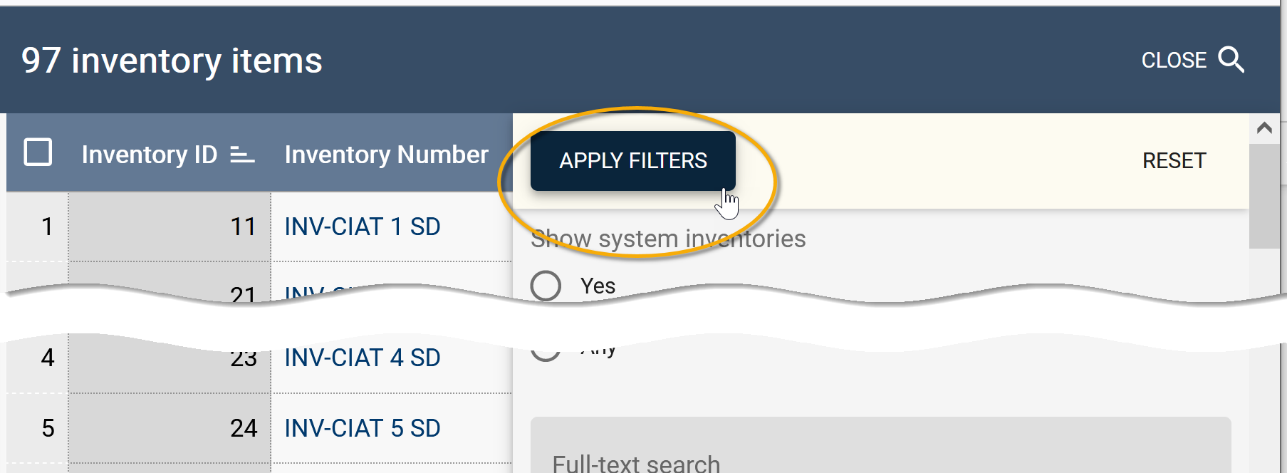
Once you have defined your criteria, you apply the filters by clicking the Apply filters button near the top of the filter's form. The filter settings are retained for the list until you either reset or clear them. If the filter form is hidden from view, you can open it again by clicking the Search button to add or change your criteria.
Saving and reusing filters
If you frequently use a specific set of filters, you can save them for later use. Note that you must first apply your chosen criteria before saving. Once the filters are applied, enter a name in the text box; the Save icon will then be enabled for you to click. After saving, the filter's name will appear in the list of saved filters, from where you can reactivate it at any time.
Saved filters are scoped to the type of data being filtered and are tied to your user account. For example, a filter saved while viewing Accessions will be available on any other page that uses Accession filtering, but it will not appear when you are viewing Inventory items. Because they are saved to your profile in GGCE, your filters will follow you across different devices and sessions whenever you are logged in.
Managing saved filters
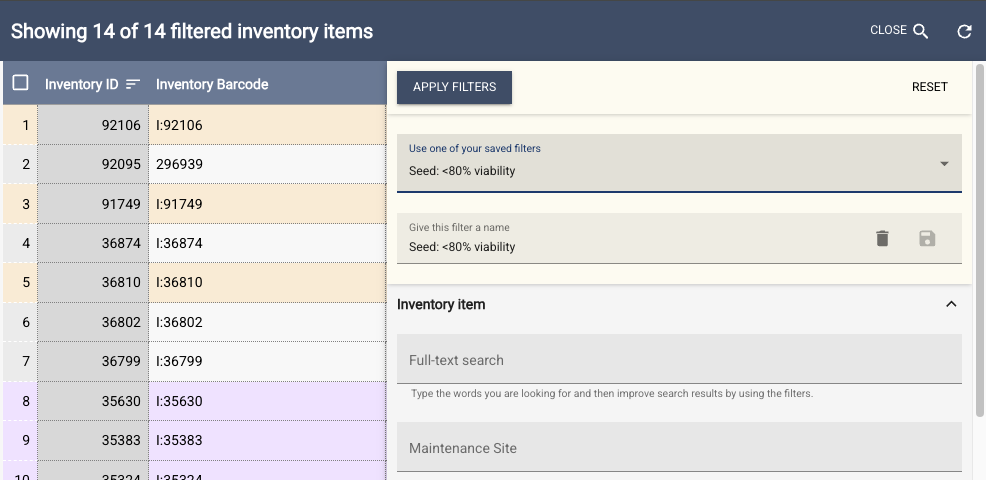
Within the search panel, you will find a bar containing the Apply filters and Reset buttons, followed by a dropdown menu where your saved filters are listed.
To use a saved filter, select its name from this dropdown. Once selected, its name appears in a text box located below the dropdown. This text box also contains icons to Save or Delete the filter.
This allows you to:
- Update: Change the name of the filter by editing the text and clicking the Save icon (or by pressing Enter). Note that if you change the filtering criteria after selecting a saved filter, the system will prompt you to save it under a new name rather than overwriting the existing one.
- Delete: Permanently remove the filter by clicking the Delete icon in the text box.
Clearing (resetting) filters
When you no longer need the filters, you can clear them by clicking the Search button and then selecting Reset. This action removes all the search criteria and restores the full list of records. Note that the Close button, which alternates with the Search button, does not clear the current filter criteria; it only hides the display of the filter form.