Introducing Saved Filters
Managing large datasets can often involve repeating the same search criteria multiple times. To make this process more efficient, we have introduced Saved Filters.
This feature allows you to save specific combinations of filters that you use frequently, such as filtering for particular accession varieties or inventory items, so you can access them instantly at a later stage.
Key Features
The new Saved Filters feature includes several useful capabilities:
- Save Filter Combinations: Once you have applied your desired filters, enter a name in the search panel and click the Save icon (or press Enter) to keep that filter for future use.
- Context-Aware Scoping: Filters are scoped to the type of data being filtered. For example, a filter saved while viewing Accessions will be available on any other page that uses Accession filtering, but it won't appear when you are viewing Inventory items.
- User Profile Integration: Because your filters are tied to your user account, they follow you across different devices and sessions whenever you are logged in.
- Easy Management: You can easily rename or delete your saved filters directly from the search panel.
How to use it
Next time you apply a set of criteria that you find yourself using often, look for the Save icon in your search panel. Give your combination a name, and it will be added to your list of saved filters.
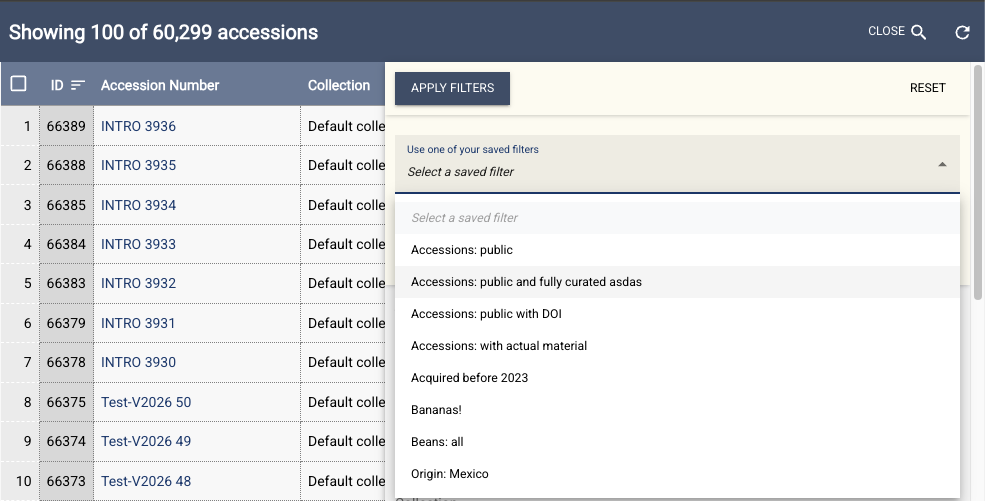
When you need those results again, simply open the dropdown menu next to the Search button and select your saved view from the list.