Running workflows
Workflows automate sequences of actions. When you complete one action in a workflow, the next action is scheduled automatically.
A new Workflows area lets users run active workflows directly from the Inventory menu.
Open the Workflows page
From the Inventory menu, select Workflows. The page lists every active workflow for inventory actions.
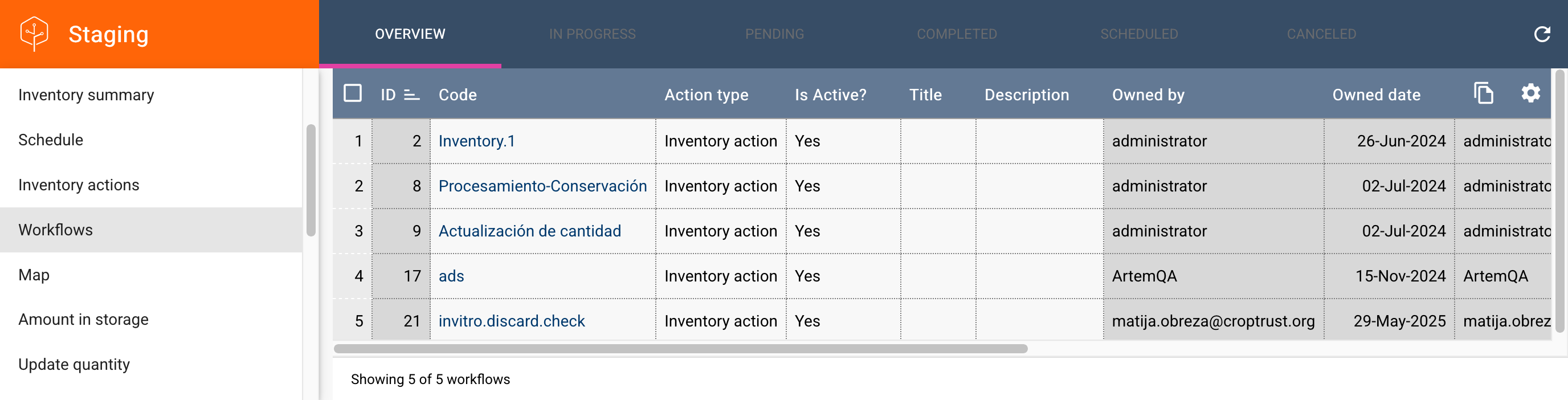
Each workflow shows a code and the action type it handles. Select a workflow to open its overview.
Only administrators can create, edit, or deactivate workflows. The user-facing Workflows page shows active workflows only.
Workflow overview
The overview displays:
- Workflow code and action type.
- Metric cards for actions in each state: In Progress, Pending, Completed, Scheduled, and Canceled.
- A read-only workflow diagram showing the workflow steps and transitions.
- A Start Workflow by Barcode section for starting the workflow on an inventory item.
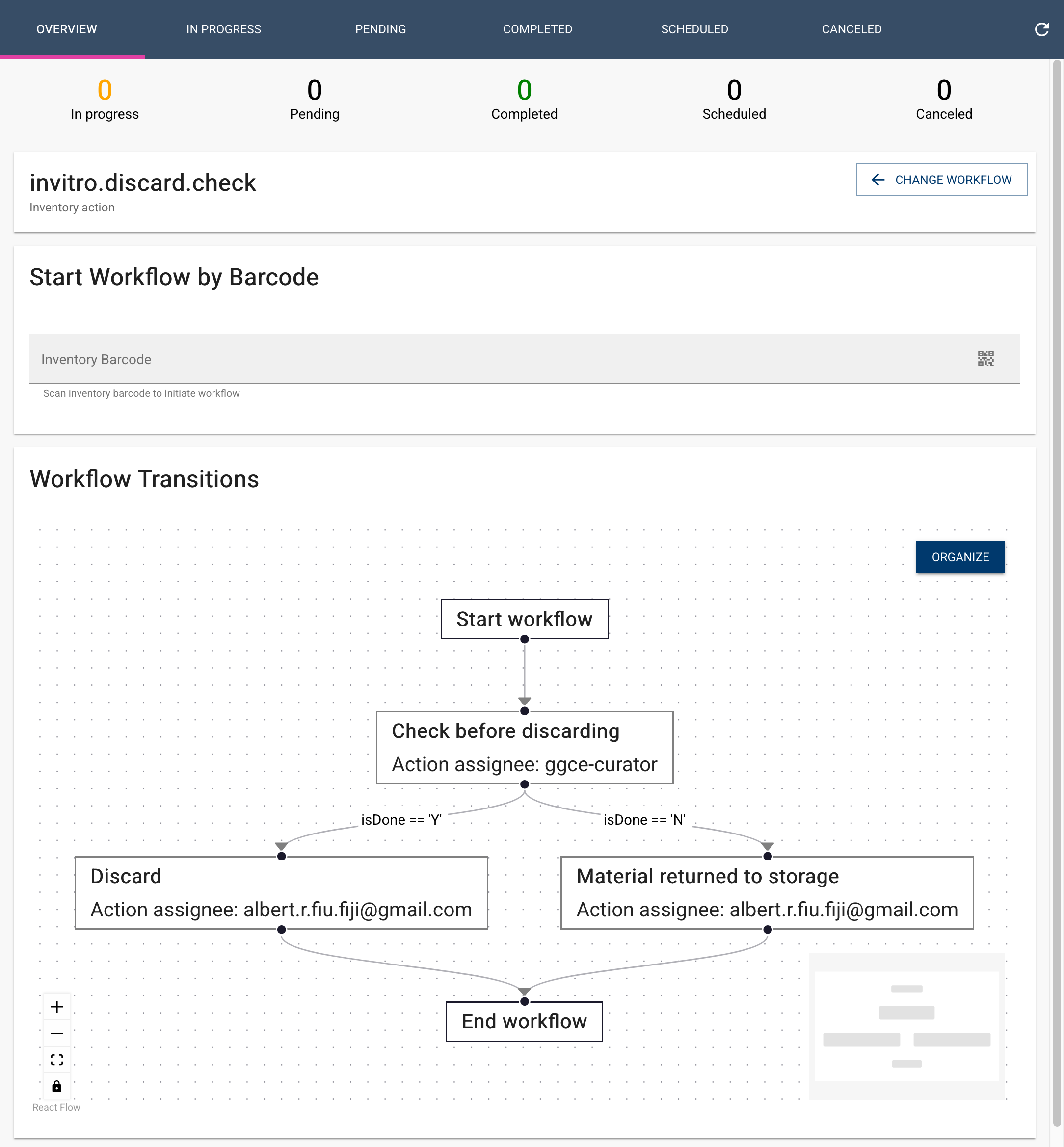
The overview also includes the Start Workflow by Barcode section at the bottom. Click a metric card to switch to the tab for that action state. Select Change workflow to return to the workflow list.
The workflow diagram is read-only on this page. Administrators can edit the diagram from the workflow builder.
Start a workflow by barcode
To start a workflow on an inventory item:
- In the Start Workflow by Barcode section of the workflow overview, scan or enter the inventory barcode.
- Review the inventory details that appear.
- If the inventory already has open actions for this workflow, an error message warns you that the workflow cannot be started. Clear the scan and choose another inventory if needed.
- Adjust the initial action properties if required:
- Quantity and unit
- Form
- Method
- Press Start workflow.
A success message confirms the workflow was started. The newly created action appears in the Pending or Scheduled tab, depending on the workflow step configuration.
Track actions in a workflow
After selecting a workflow, use the tabs to view actions by state:
- In Progress: actions that have been started and are not yet completed.
- Pending: actions that are ready to be started.
- Scheduled: actions with a future start date.
- Completed: actions that have been finished.
- Canceled: actions that were canceled.
Each tab is a sortable, paginated table. Use the filter button to narrow actions by assignee, method, inventory, or other criteria.
Select one or more actions to reveal the floating action button, then choose an action such as Assign, Start, Complete, Reschedule, Cancel, or Schedule follow-up.
Translate workflow titles and descriptions
Workflow titles, descriptions, and step texts can be translated into the languages configured for GGCE. Translations are managed by administrators in the workflow builder; users see the title and description in their selected language when available.